
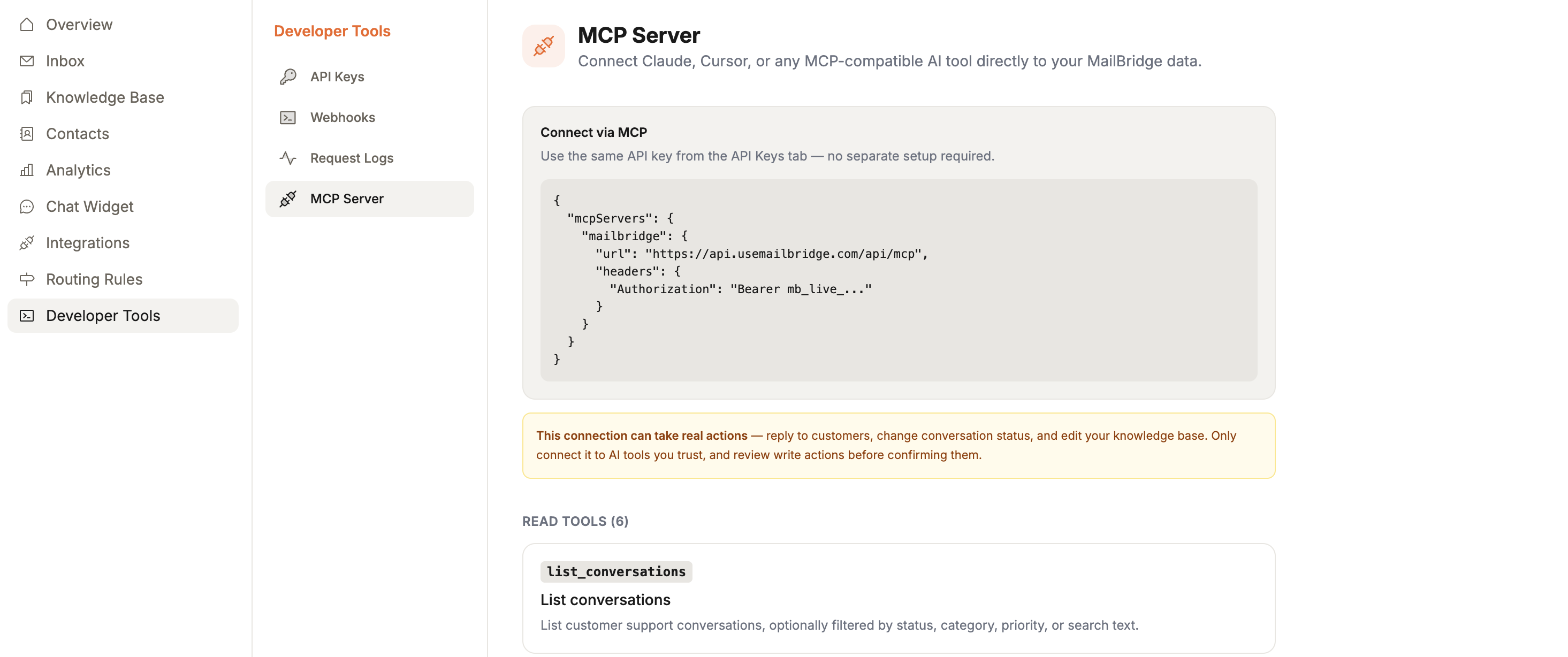
Most integrations we build connect MailBridge to a tool your team already uses. Slack, Linear, GitHub. This one is different. It connects MailBridge to whatever AI tool you’re already talking to.
We just shipped a full MCP server. Point Claude Desktop, Cursor, or any MCP-compatible client at your workspace, and it can read your conversations, search your knowledge base, pull analytics, and, with your explicit confirmation, reply to a customer or update your documentation, right from the chat you’re already in.
We’re more excited about this than almost anything else we’ve built. If you’re a solo builder or indie hacker handling support between everything else on your plate, without the bandwidth to babysit yet another dashboard, here’s why.
The problem with “AI support tools”
Most AI support products are built around a chat widget or a triage pipeline. A fixed surface where AI does its work, and you go check on it. That’s useful, but it means the AI lives in one place, and you live in another.
Meanwhile, more of us spend the actual working day inside an AI tool. Asking Claude to help draft something. Using Cursor to ship a fix. Thinking out loud with a model that already has the context of the last hour of conversation. Support data living in a separate dashboard means constantly breaking that flow just to go look something up.
MCP exists to close that gap. It’s an open protocol, not a MailBridge invention, for letting AI clients call into external tools and data sources in a structured, permissioned way. We didn’t want to build another silo. We wanted MailBridge to show up wherever you’re already working.
What it actually does
Once connected, an MCP client can call two kinds of tools against your workspace.
Read tools need no confirmation, because they can’t change anything: list and search conversations, pull a contact’s full history, search the knowledge base, get an analytics overview of recent support activity. This is the “let me just ask instead of clicking around the dashboard” layer, and it’s genuinely faster than opening a browser tab for a quick lookup.
Write tools are where it gets interesting: reply to a conversation, add an internal note, change a conversation’s status, escalate internally, create or edit knowledge base articles. These are real actions with real consequences. That’s exactly why we designed them the way we did.
Why the write tools don’t scare us
The obvious worry with letting an AI client take actions on customer conversations is that it does something wrong, fast, at scale, while you’re not looking.
We built against that directly. The most consequential tools, sending a real reply, editing a knowledge base article that the AI chat widget treats as source of truth, are explicitly flagged in the tool catalog as requiring confirmation before the call is made. A well-behaved MCP client surfaces the exact text before it sends anything. Nothing gets sent to a customer without you seeing it first.
This mirrors how we think about AI in the product generally. MailBridge’s triage pipeline drafts replies; a human sends them. The Knowledge Base gives the AI better context, not more autonomy. The MCP server extends that same idea to a new surface: more reach, same amount of human judgement in the loop.
Setting it up
If you can generate a MailBridge API key, you can connect an MCP client. There’s no separate MCP-specific setup or new credential type. Generate a key from Developer Tools → API Keys, add MailBridge as a remote server in your client of choice, and you’re connected.
We wrote up the full tool catalog, the exact config format, and authentication details in the MCP docs.
Why this matters more than it might look like
This is the crowd we built MailBridge for in the first place: solo builders, indie hackers, and small bootstrapped teams who don’t have a dedicated tools team wiring up custom integrations for every workflow. You can’t afford to bounce between a support dashboard, a ticketing tool, and a separate AI assistant all day. You need the fewest possible tools doing the most possible work. What you already have is whatever AI tool you’ve adopted for everything else, and increasingly, that tool is becoming the place work actually happens.
Our bet is that the support tools worth using in a few years won’t be the ones with the most features bolted onto a dashboard. They’ll be the ones that show up cleanly inside the tools solo builders and small teams have already chosen to work in, instead of asking them to add one more. The MCP server is our first real step in that direction, and it won’t be the last.
The MCP server is available now on all MailBridge plans. Connect it from Developer Tools → MCP in your dashboard, or read the full setup guide.