
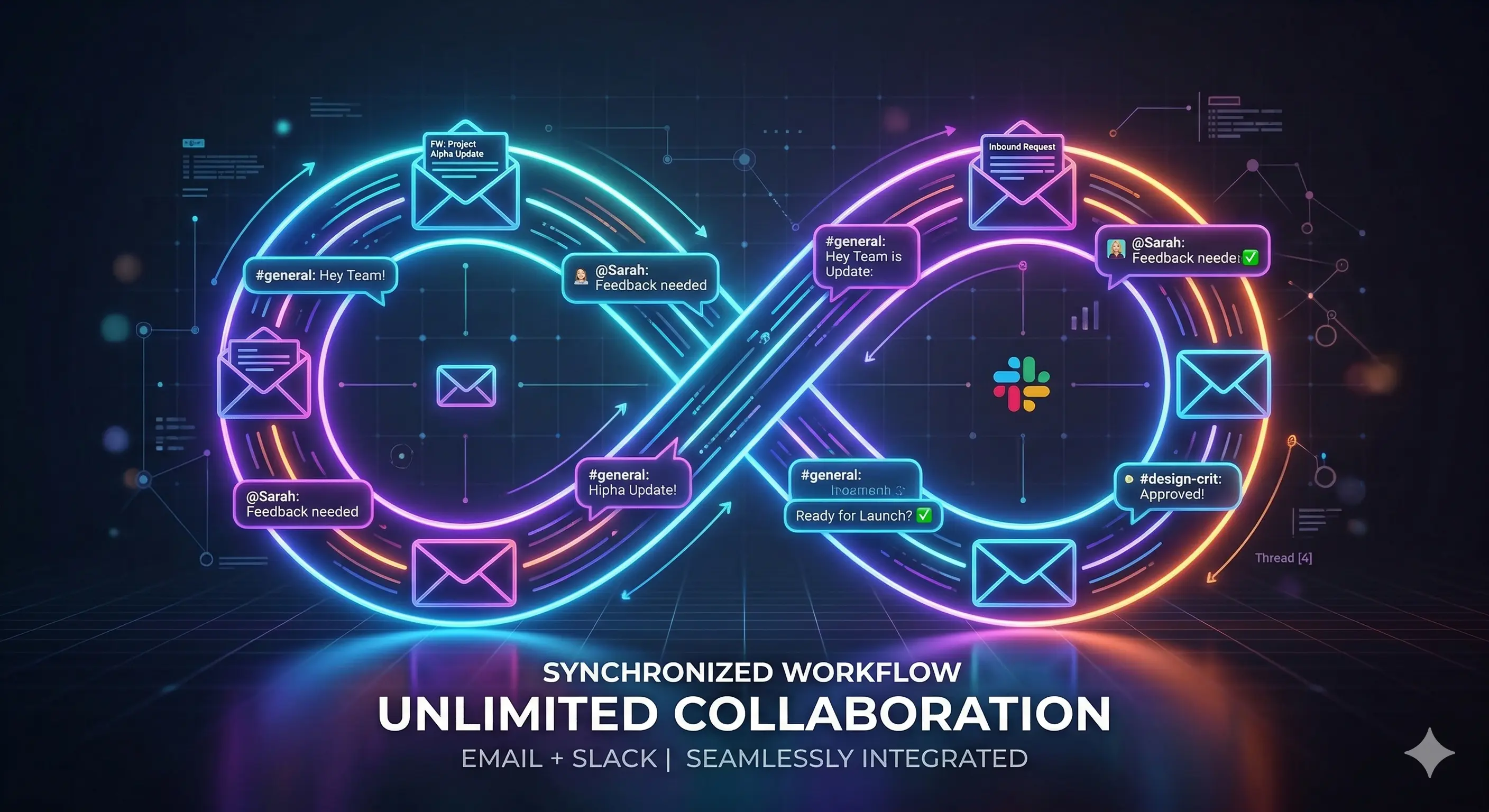
Most support tools focus on the agent side. How tickets get assigned. How fast agents respond. How many conversations are open.
The customer side gets less attention. What does a customer actually experience when they send a support email? What happens between the moment they hit send and the moment their problem is solved?
For most small teams, the honest answer is: not much. The customer sends their email. They wait. They wonder if anyone saw it. They send a follow-up. Eventually they get a reply, or they do not.
That gap — the silence between send and resolution — is where trust gets lost.
MailBridge was built to close that gap.
Why we started with Slack
When we talked to small teams about how they handle customer support, one thing was consistent: they were already using Slack to talk about it.
A customer email would arrive. Someone would copy-paste it into a Slack channel. The team would discuss it in the thread. Someone would go back to their inbox and reply. The conversation existed in two places and was tracked in neither.
The obvious solution was to meet teams where they already were. Instead of pulling teams into a new tool, route inbound customer emails directly into Slack — complete with AI triage, priority scoring, and sentiment analysis — so the team can see everything in one place and act from there.
That is the core of MailBridge: customer emails land in your Slack channel, enriched with context, ready to act on.
The AI layer
Raw email forwarding is not enough. What makes an email useful in Slack is context.
When a new customer email arrives, MailBridge runs it through an AI triage pipeline before posting to Slack. The pipeline classifies the category (bug report, billing question, feature request, general inquiry), scores the priority from 1 to 10, detects the customer’s sentiment, writes a one-paragraph summary, and drafts a suggested reply.
By the time the Slack notification arrives, your team knows exactly what the customer needs and has a starting point for the response. No one has to read a wall of text to understand what is going on.
Critical issues — priority 10, frustrated customer — trigger a @channel mention so the right people are pulled in immediately. Everything else sits in the channel at the right volume.
What customers were experiencing
Here is the problem we found as we started testing with real teams.
The agent experience was good. Emails in Slack, context at a glance, reply from a modal without leaving the channel. Agents loved it.
The customer experience had gaps.
First: when a customer sent an email, they heard nothing back immediately. No acknowledgement. Just silence. Even if an agent replied within five minutes, those five minutes felt like abandonment. Small teams were not sending “we received your message” emails because doing it manually is tedious and doing it with existing tools requires setting up automations most teams never get around to.
Second: when agents replied from Slack, the replies were not threading properly in Gmail. The customer would get the response, but it would appear as a new conversation instead of a reply to their original email. They had to connect the dots manually. For a customer who sent three emails over two days, their inbox looked like three unrelated conversations with no continuity.
Third: when a conversation was resolved, the customer found out by noticing no one replied again. There was no “your issue has been closed” message. No closure. Just silence again.
We fixed all three.
Instant acknowledgement
Now, the moment a new customer email arrives, MailBridge sends an automatic acknowledgement before the triage pipeline even runs.
Acknowledgement email (auto-sent)
Hi Sarah,
Thanks for reaching out. We’ve received your message and someone from our team will get back to you shortly.
Best,
Support Team
Simple. No promises about response time. No generated nonsense. Just a human confirmation that they are not shouting into a void.
If you have configured custom SMTP for your domain, the acknowledgement goes out from your own address. If not, it goes from our verified sending address. Either way, it lands properly in the customer’s inbox within seconds of their email arriving.
Proper email threading
The threading fix required going one level deeper into how email works.
Email clients like Gmail use three headers to decide whether a message belongs to an existing conversation: Message-ID, In-Reply-To, and References. The Message-ID header is a unique identifier assigned by the sending mail server when the original email is created. To thread a reply correctly, the reply must include an In-Reply-To header that references that exact ID.
The problem was that the email processing service we use for inbound webhooks exposes its own internal message identifier — a UUID that is not the same as the RFC Message-ID header. We were using the wrong ID. Gmail saw each reply as a new message because the In-Reply-To header pointed to an identifier it had never seen before.
The fix was to extract the real Message-ID from the raw email headers and store it alongside every inbound message. Now when an agent replies from Slack, the outbound email includes the correct In-Reply-To and a full References chain built from every message in the conversation. Gmail threads them correctly. The customer sees one continuous conversation, not a pile of disconnected emails.
Resolution emails
When an agent marks a conversation as resolved, MailBridge now sends a resolution email to the customer.
Resolution email (optional)
Hi Sarah,
Just wanted to let you know that your recent support request has been resolved. If you have any further questions or run into any issues, don’t hesitate to reach out.
Best,
Support Team
This is optional — you can turn it off in settings if your workflow does not need it. But for most teams, it is the right default. The customer gets closure. The loop is closed.
Like acknowledgements, resolution emails go out from your configured sending address and thread correctly into the existing conversation.
Resolving conversations without leaving Slack
Before this change, marking a conversation as resolved required going to the MailBridge dashboard. That interrupted the flow — agents were working in Slack, needed to open a browser, find the conversation, change the status.
Now there is a “Mark as Resolved” button directly in the Slack notification. One click. The conversation is resolved, the resolution email goes to the customer, and the agent gets an ephemeral confirmation in the channel. The whole workflow — receive, triage, reply, resolve — happens without leaving Slack.
What the full loop looks like now
A customer sends an email. Within seconds, they receive an acknowledgement confirming it arrived.
In Slack, the team sees the notification: category, priority, sentiment, summary, suggested reply. They discuss in the thread if needed. When they are ready, they click “Reply to Customer,” write or edit the suggested reply, and send it. The reply lands in the customer’s inbox as a proper threaded response.
When the issue is sorted, the agent clicks “Mark as Resolved.” The customer gets a clean resolution email. The conversation closes.
The customer sent one email and had a coherent, professional experience from receipt to resolution. The agent never left Slack.
What is next
The foundation is solid. The next layer is routing — letting teams define rules so that billing questions go to one Slack channel and bug reports go to another. After that, Discord support for teams who live there instead of Slack.
The goal has not changed: give small teams a support workflow that works for how they actually operate, without the overhead of a platform built for someone ten times their size.
If you want to try it, MailBridge is in early access. Ten-day trial, no credit card required.