
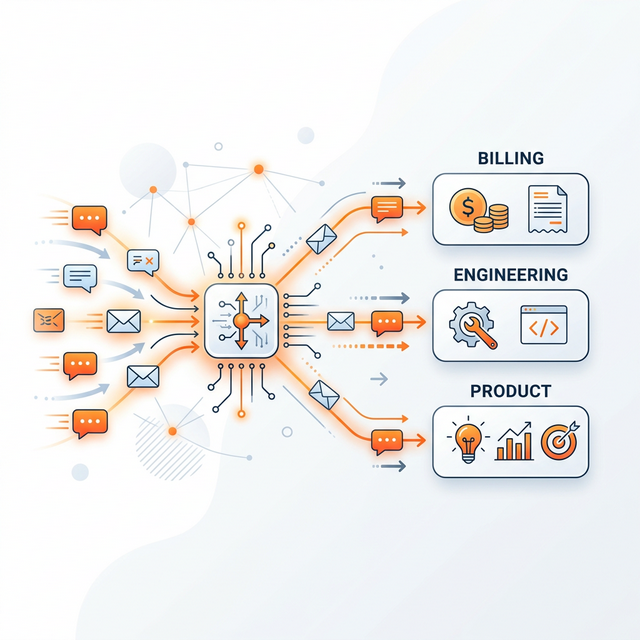
The default behavior when an email arrives is simple: post it to your default channel. That’s fine when you’re getting five support emails a day. It doesn’t work when you’re getting fifty, and your billing team keeps getting pinged about bugs they can’t fix.
Routing rules let you map specific categories of email to specific channels. Set them up once, and the right conversation lands in front of the right people automatically.
How routing works
MailBridge AI classifies every incoming email into one of several categories: billing, technical support, feature request, general inquiry, and a few others. Once the category is determined, the routing engine checks your rules to find a match.
If a rule matches, the email goes to that channel. If nothing matches, it falls through to your default channel. The default channel is your safety net — nothing gets lost.
You configure rules from Routing Rules in your dashboard.
Setting up your first rule
Here’s a practical example. You want billing emails to go to #billing-support instead of your main #support channel.
- Go to Routing Rules and click Add rule.
- Set the Category to Billing.
- Set the Destination to
#billing-support(or whichever channel you’ve connected). - Save.
That’s it. The next billing email that arrives routes to #billing-support automatically.
Useful routing setups
Here are a few patterns teams commonly use:
Separate bugs from questions. Route Technical Support emails to #bugs or #engineering-support so your engineering team sees them directly. Route General Inquiry to #support for your generalist team.
Get feature requests to your PM. Route Feature Request emails to a product channel or directly to a PM’s DMs. Product feedback stops getting buried in a support queue.
Keep billing out of engineering. Billing disputes require a completely different skill set than debugging an API issue. Routing them to separate channels means neither team is fielding irrelevant notifications.
Flag high-urgency emails. If you have a channel your whole company watches (like #alerts), you can route high-urgency emails there to get faster cross-team attention.
Your default channel
Every MailBridge setup has a default channel. This is where emails land when no routing rule matches — and it’s also where new emails go before you’ve set up any rules at all.
Choose your default channel during onboarding. You can change it any time in Routing Rules.
A good default is a general #support channel that your whole support team watches. That way, nothing slips through unnoticed even if the AI occasionally miscategorizes an edge case.
A few things to know
Rules are evaluated in order. If you have multiple rules and an email could match more than one, the first matching rule wins. You can drag to reorder rules in the dashboard.
One channel per rule. Each rule routes to a single channel. If you want the same category to notify multiple channels, use Slack’s native channel forwarding or notification settings.
The default channel is always the fallback. You can’t delete the default channel assignment. If you remove a rule or the category doesn’t match anything, the default catches it.
Starting simple
You don’t need a rule for every category on day one. Start with the routing that saves your team the most time right now — usually separating billing from technical support. Add more rules as you learn how your email volume breaks down.
Most teams find that three or four rules cover 90% of their volume. The remaining 10% lands in the default channel, where a quick glance is all it takes to handle manually.
The goal isn’t a perfect routing setup. It’s reducing the noise so the right people see the right emails, faster.